Course navigation & on this page
Git & the working environment
Keep a reliable history of your experiments, work with branches, and navigate your course files.
What you’ll understand
- Distinguish a local repository from a remote repository.
- Understand the working tree, staging area and commits.
- Use branches to isolate algorithm experiments.
A history of your experiments
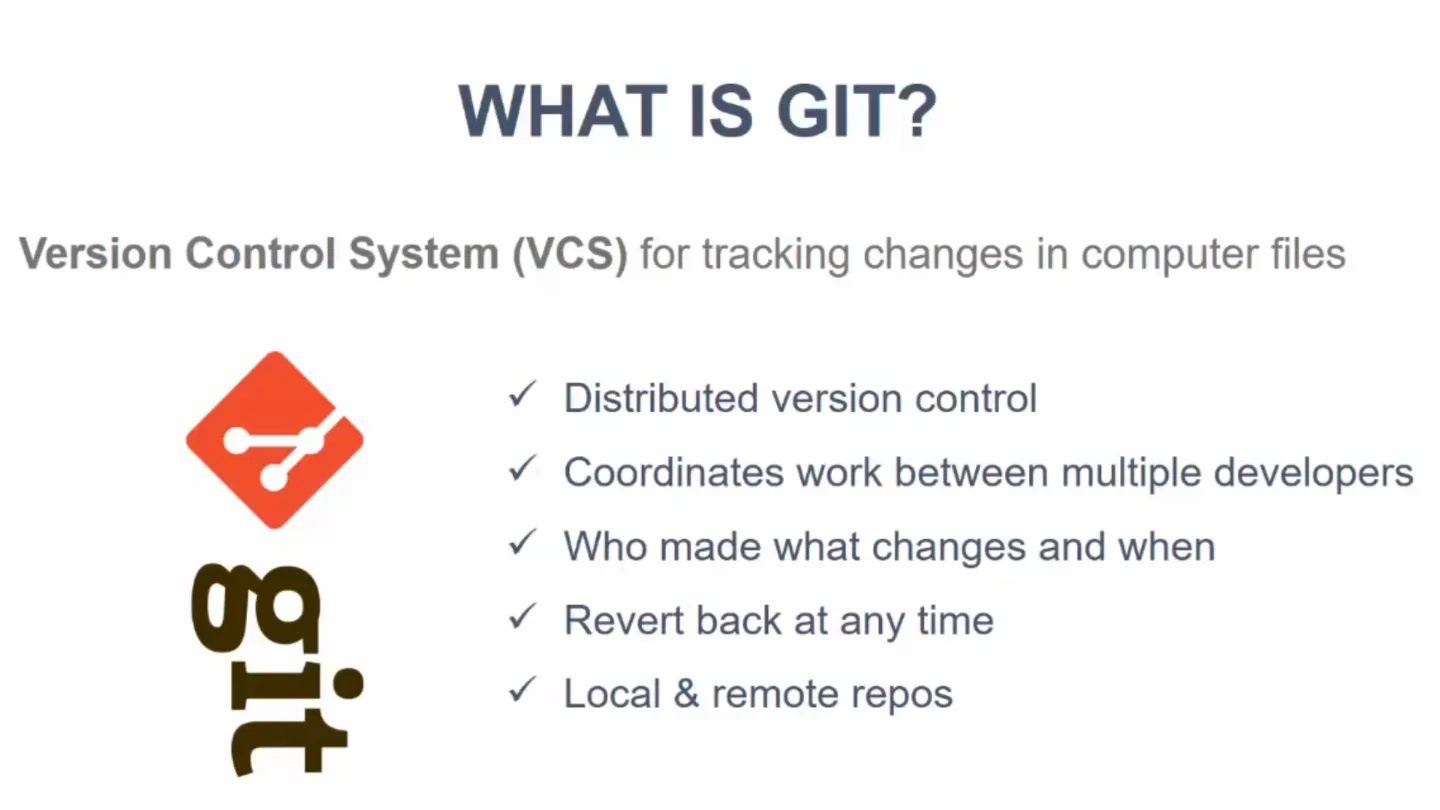
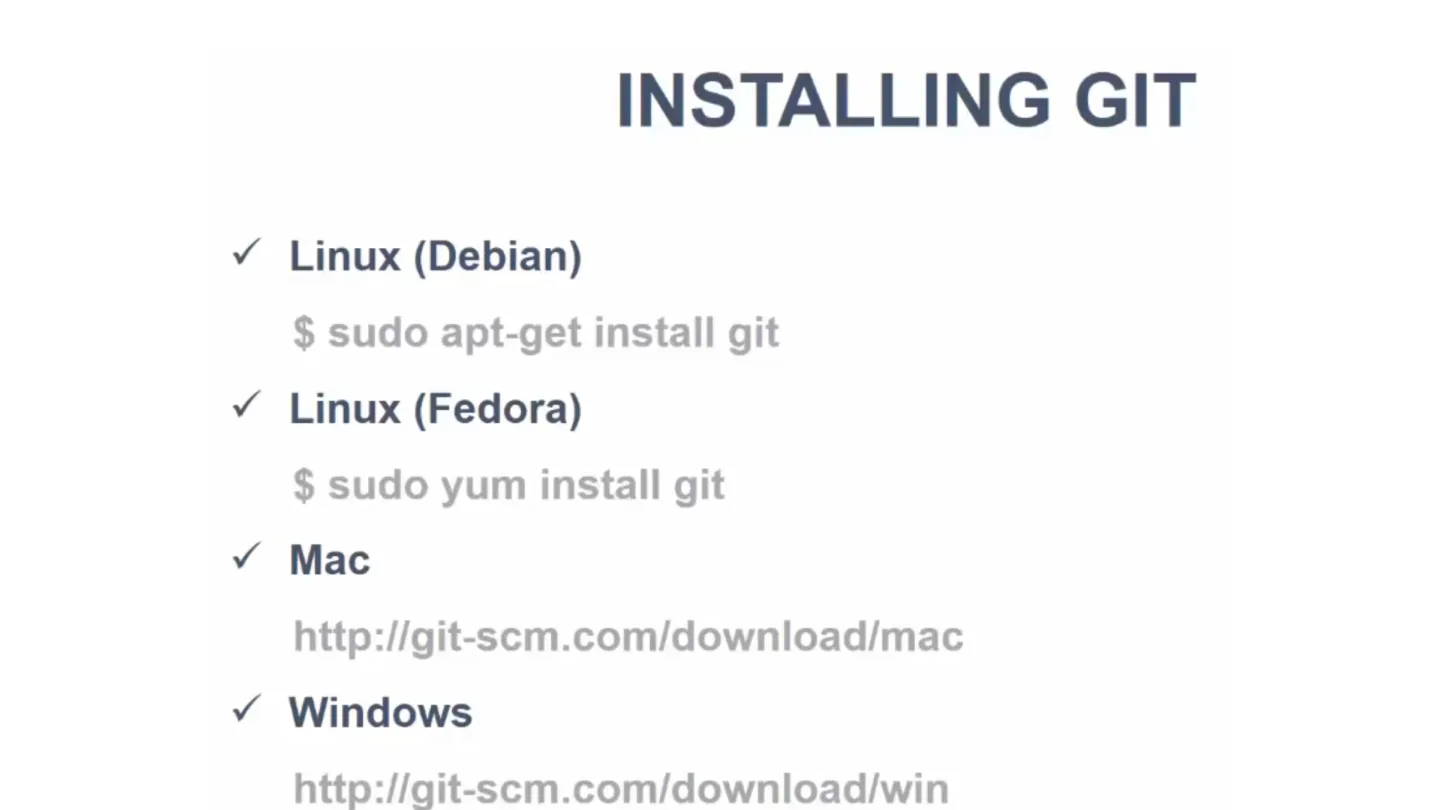
The supplied Git introduction introduces version control, terminal commands, editors, remote repositories and branching. A repository records snapshots of a project so an implementation can be compared with an earlier version. This is especially useful when experimenting with an algorithm: keep a correct baseline before changing its logic.
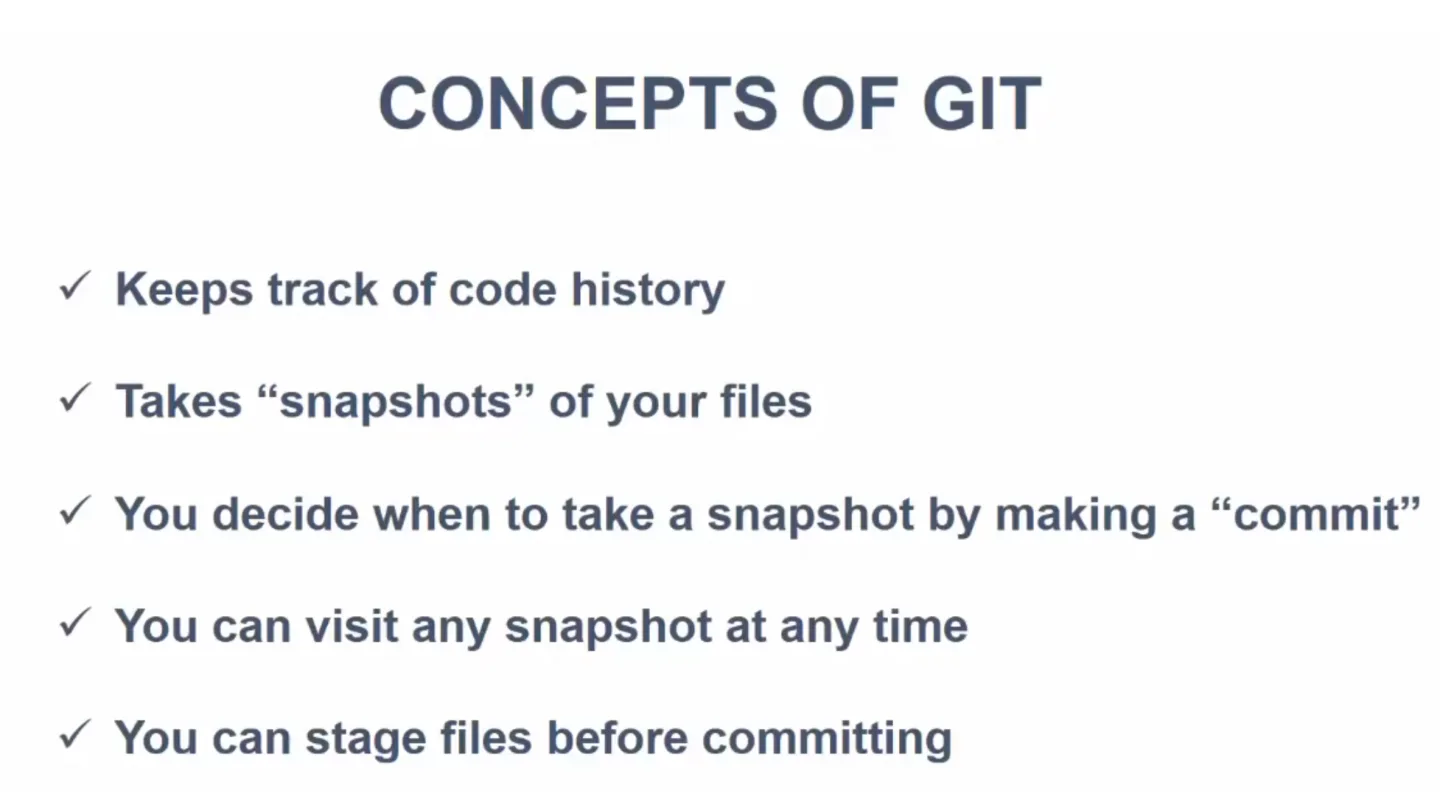
A working tree is the set of files you edit. The staging area selects the changes for the next snapshot. A commit stores that snapshot with a message. Saving a file in an editor does not create a commit.
The local Git workflow
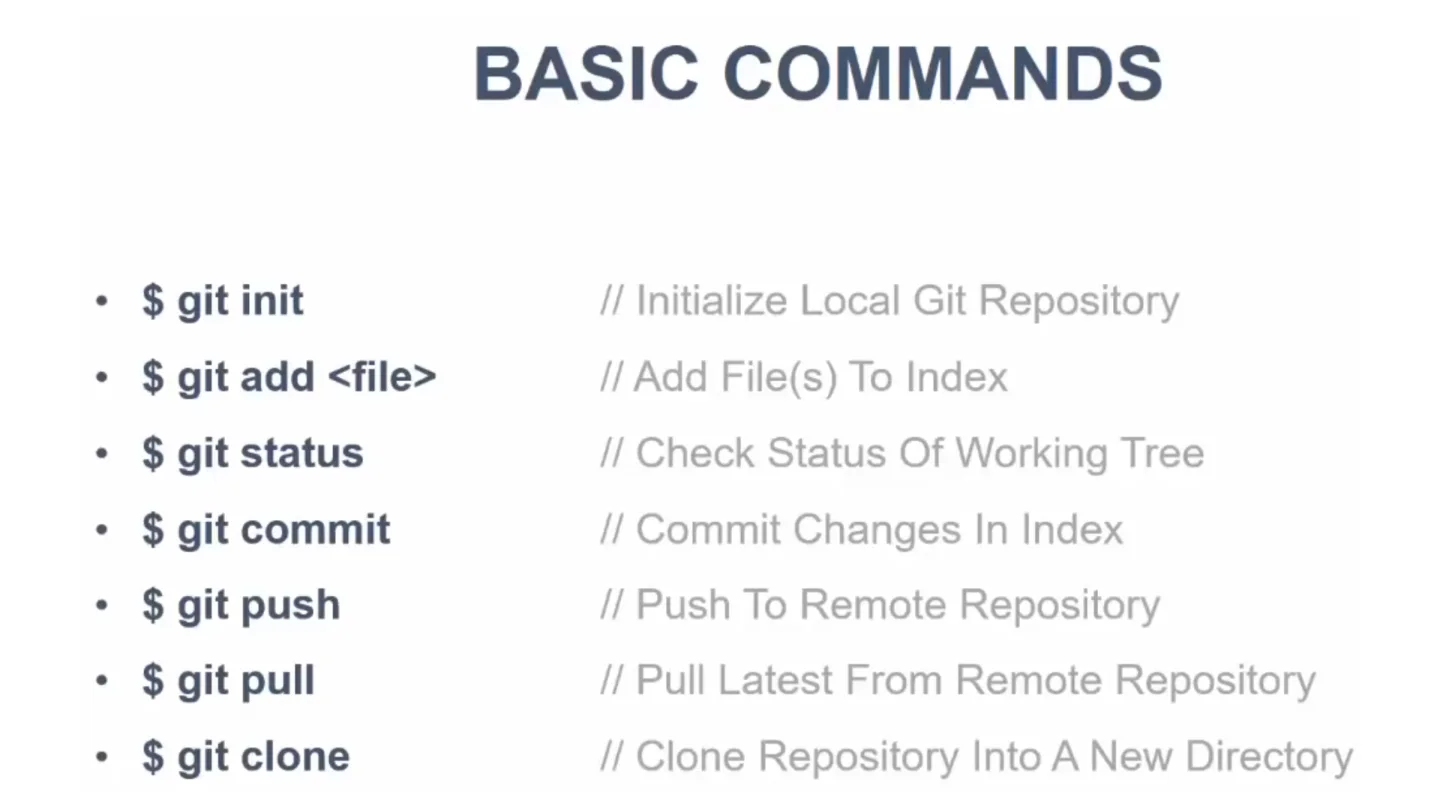
Inspect your changes before staging them. Commit a coherent change with a message explaining its purpose. The following is a supplementary example of the workflow introduced in the slides.
- git status reports staged, unstaged and untracked files.
- git diff compares edits with the index; git diff --staged reviews the next commit.
- git log shows committed history. A commit is local until it is pushed.
git statusgit diffgit add Euclid.javagit commit -m "Add Euclidean algorithm example"Branches and remote repositories
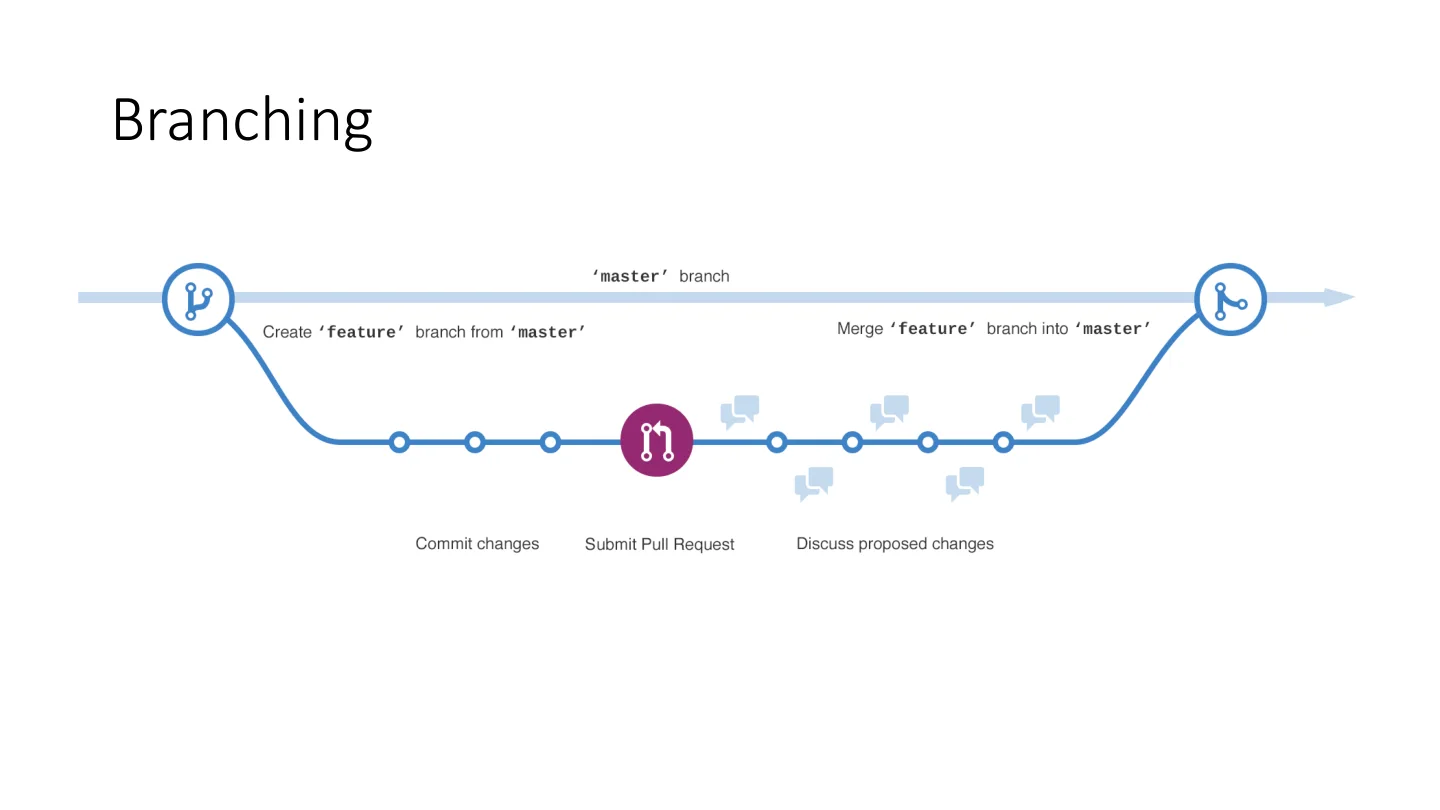
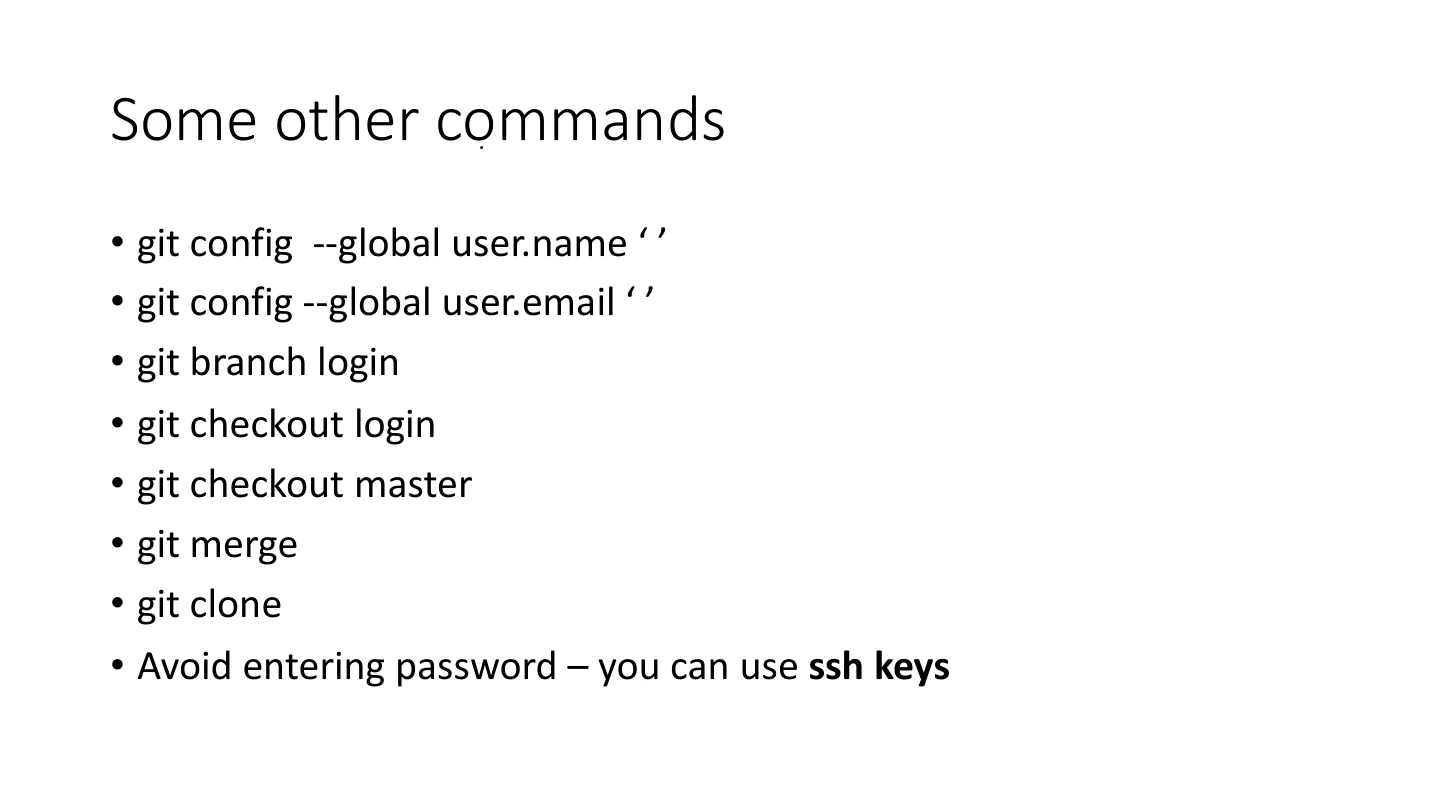
A branch is a movable name for a line of commits. The slides use git branch login and git checkout login to create and switch to a branch. Keep the original implementation and explore an alternative on a new branch.
A remote such as GitHub stores another copy of the repository. Clone creates a local copy. Fetch downloads remote history; merge integrates another line of development. A merge conflict requires you to inspect both changes and select the intended result.
- The slides use the branch name master. Use the branch name that actually exists in your repository.
- Configure your own name and email for commits. Do not copy somebody else’s identity.
- A .gitignore file excludes matching untracked artifacts; it does not remove files already tracked.
git branch experimentgit checkout experiment# Make and commit an isolated experimentgit checkout maingit merge experimentFiles, directories and editors
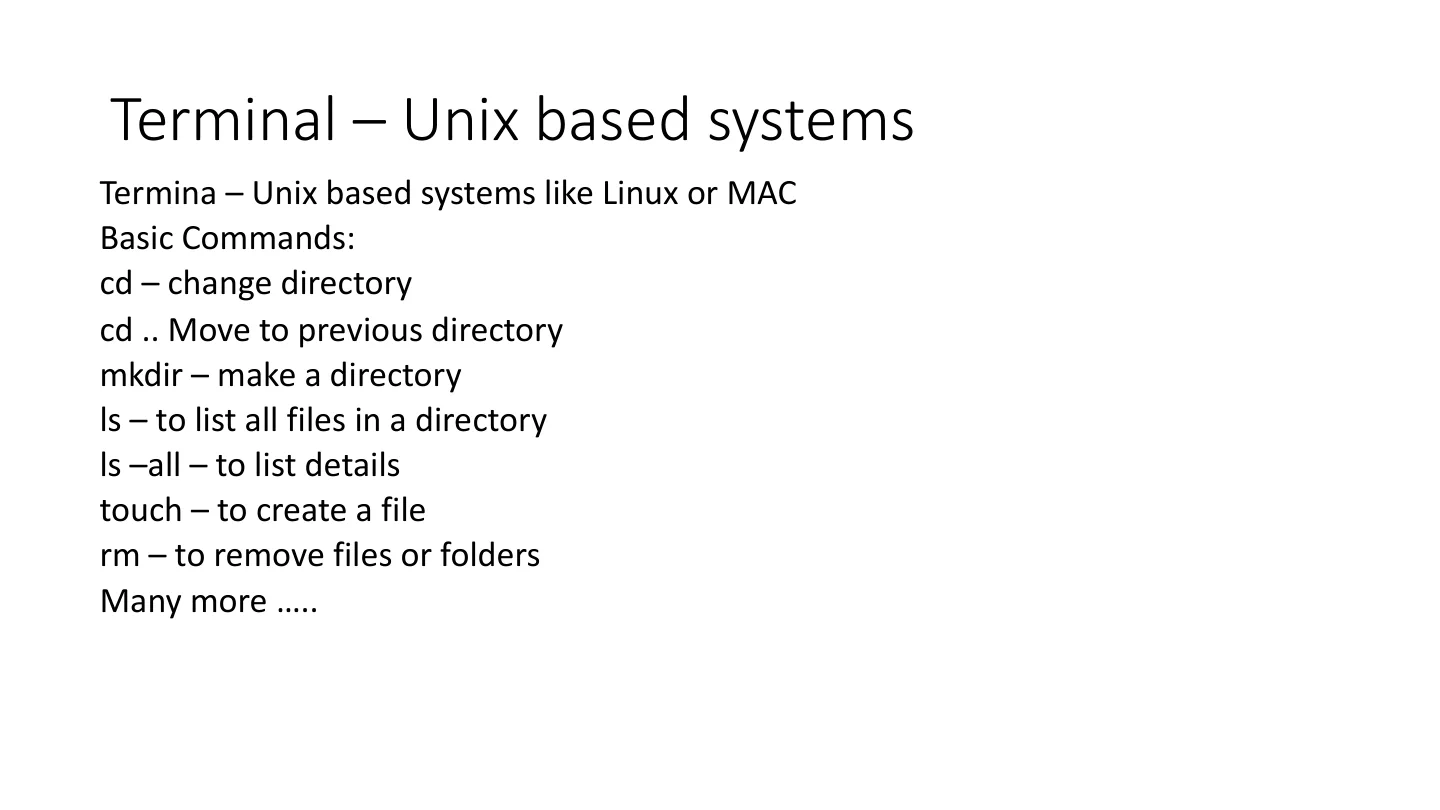
The slides introduce cd for changing directories, mkdir for creating a directory, and ls on Unix-like systems or dir in Windows Command Prompt for listing files. Relative paths begin at the current directory; .. refers to its parent.
Choose a text editor that preserves plain source text. Compile and run from the directory containing the intended Java files. Keep generated class files and editor metadata separate from academic source files.
Remember for revision
Working tree → staging area → commit is the core local sequence. A branch lets you compare experiments. A remote supports sharing and backup. Always inspect the changes you intend to commit.
Check your understanding
Supplementary practice. Try each question before opening the answer.
Does git add upload a file to GitHub?
No. It stages a local snapshot for the next commit. Uploading committed history requires a separate push to a configured remote.
Why keep an algorithm experiment on a branch?
It separates the experiment from the baseline and makes it possible to compare, discard or merge the changes intentionally.
Complete lecture source
Every source page is preserved below. Open a page to read its text and inspect the original diagram, formula or example. Expanded explanations above are supplementary.
Download original PDF · 13 pages
Page 01 · git developed by Linus Torvalds
Searchable transcription (OCR; verify formulas against the image)
Page 02 · Visual explanation / original slide
Searchable transcription (OCR; verify formulas against the image)
Page 03 · Visual explanation / original slide
Searchable transcription (OCR; verify formulas against the image)
Page 04 · Visual explanation / original slide
Searchable transcription (OCR; verify formulas against the image)
Page 05 · Visual explanation / original slide
Searchable transcription (OCR; verify formulas against the image)
Page 06 · Some other commands
Page 07 · Terminal – Unix based systems
Page 08 · Command line (CMD) - Windows
Searchable transcription (OCR; verify formulas against the image)
Page 09 · Text Editors
Searchable transcription (OCR; verify formulas against the image)
Page 10 · .gitignore - file
Searchable transcription (OCR; verify formulas against the image)
Page 11 · Remote Repository
Searchable transcription (OCR; verify formulas against the image)
Page 12 · How git and GitHub work?
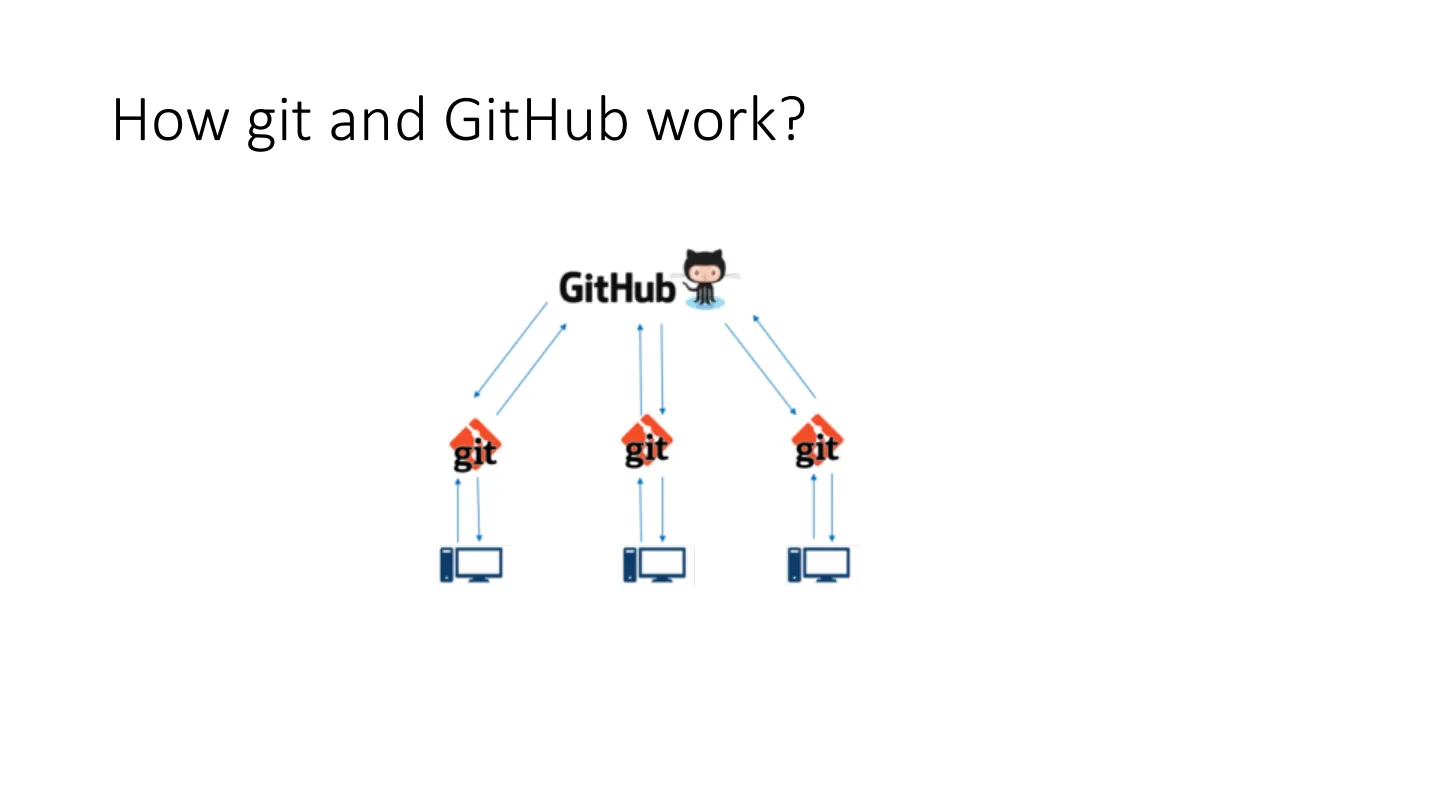
Searchable transcription (OCR; verify formulas against the image)
Page 13 · Branching